In this post, we will learn how to create a new product in the POS system. To get started, go to Products > Add New Product.
We have divided the entire process into several parts and explained each one in detail. In the image below, you can see how the product creation form is divided into different sections.
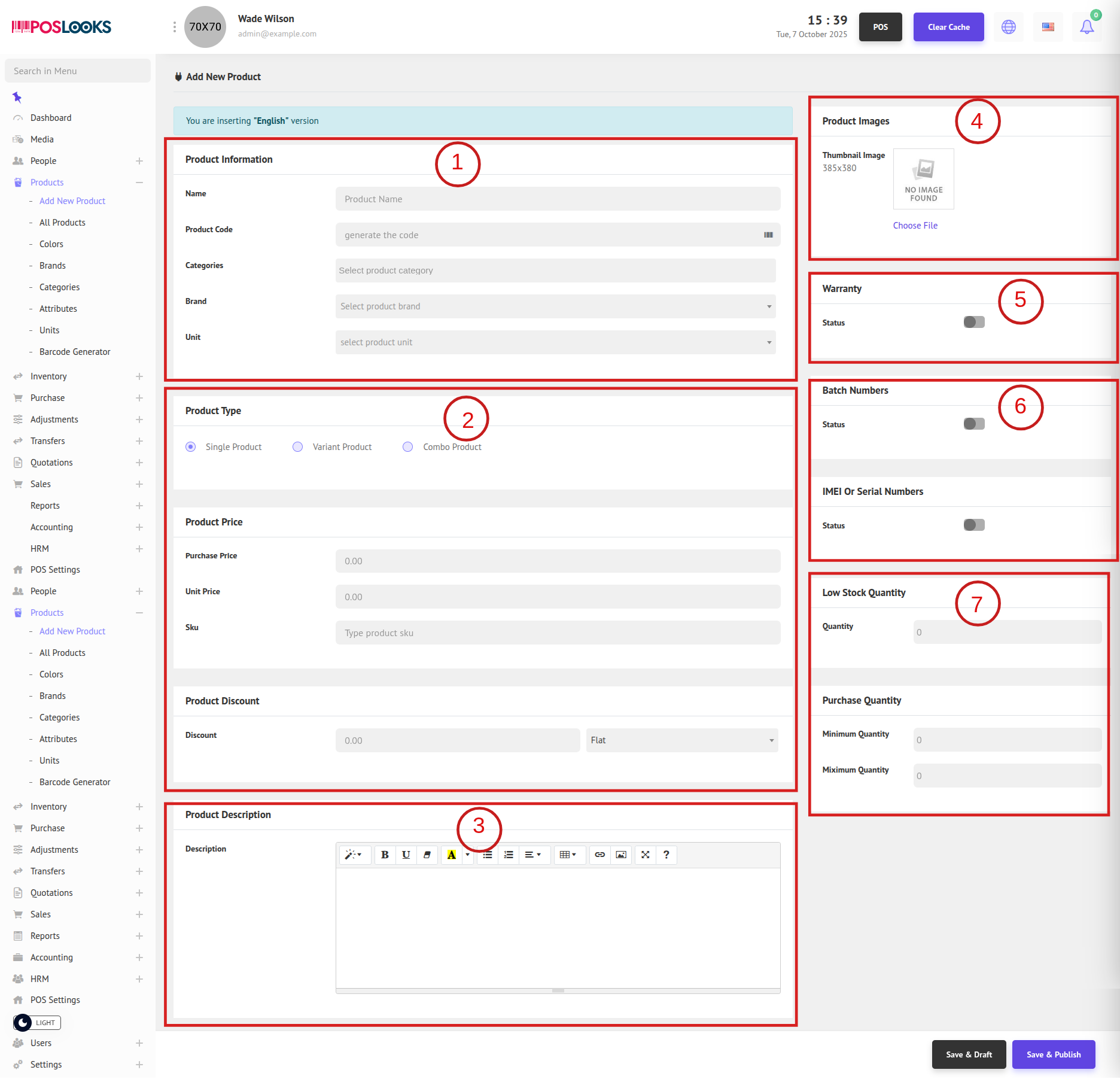
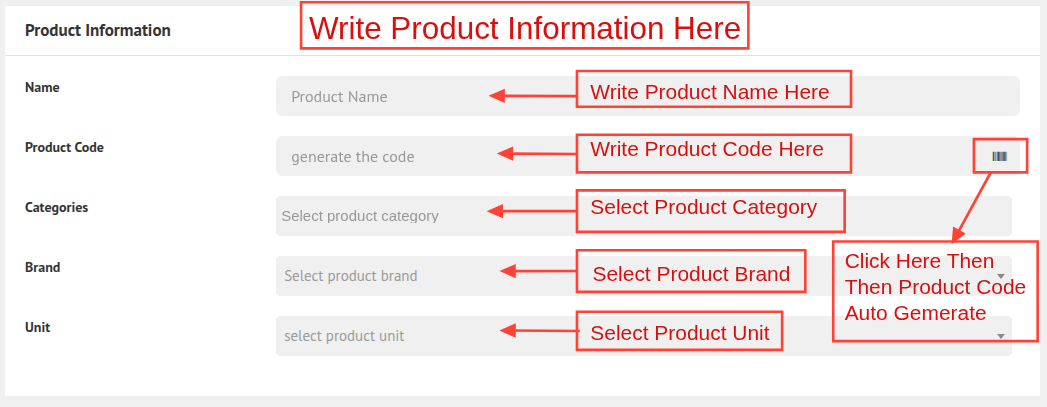
1. This section serves as the Product Information area, providing essential details such as the product name, code, category, brand, and unit.
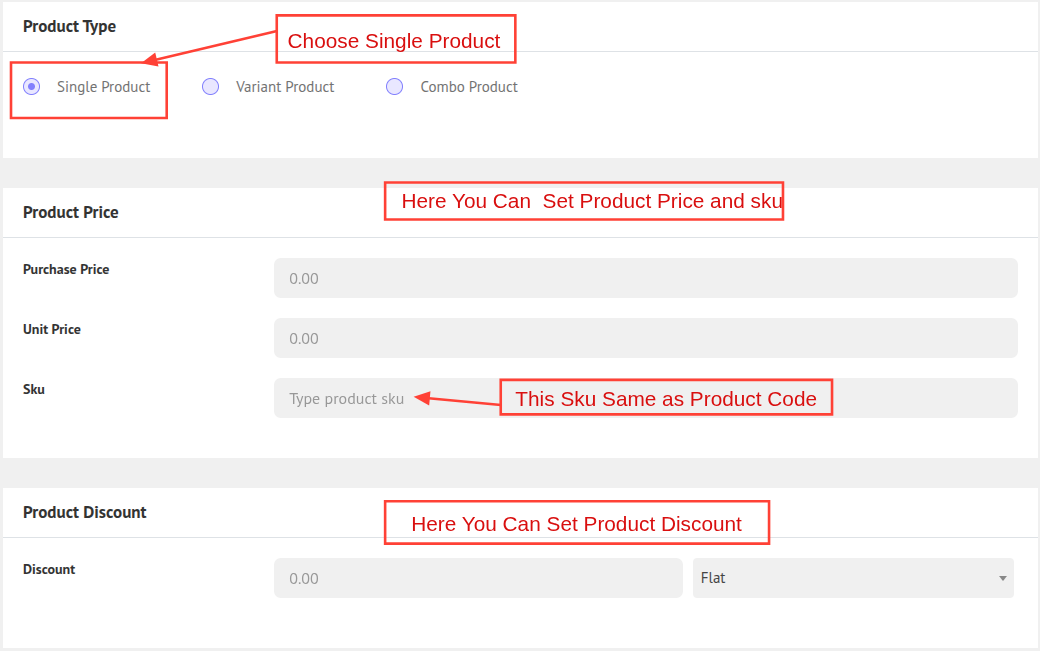
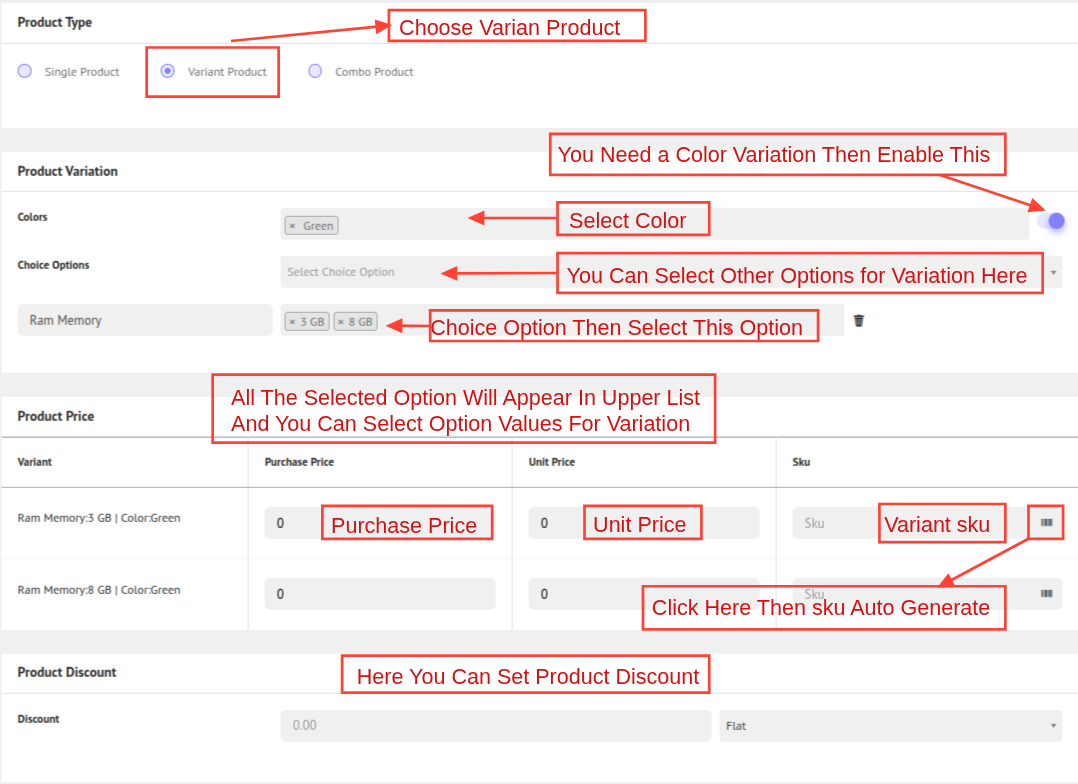
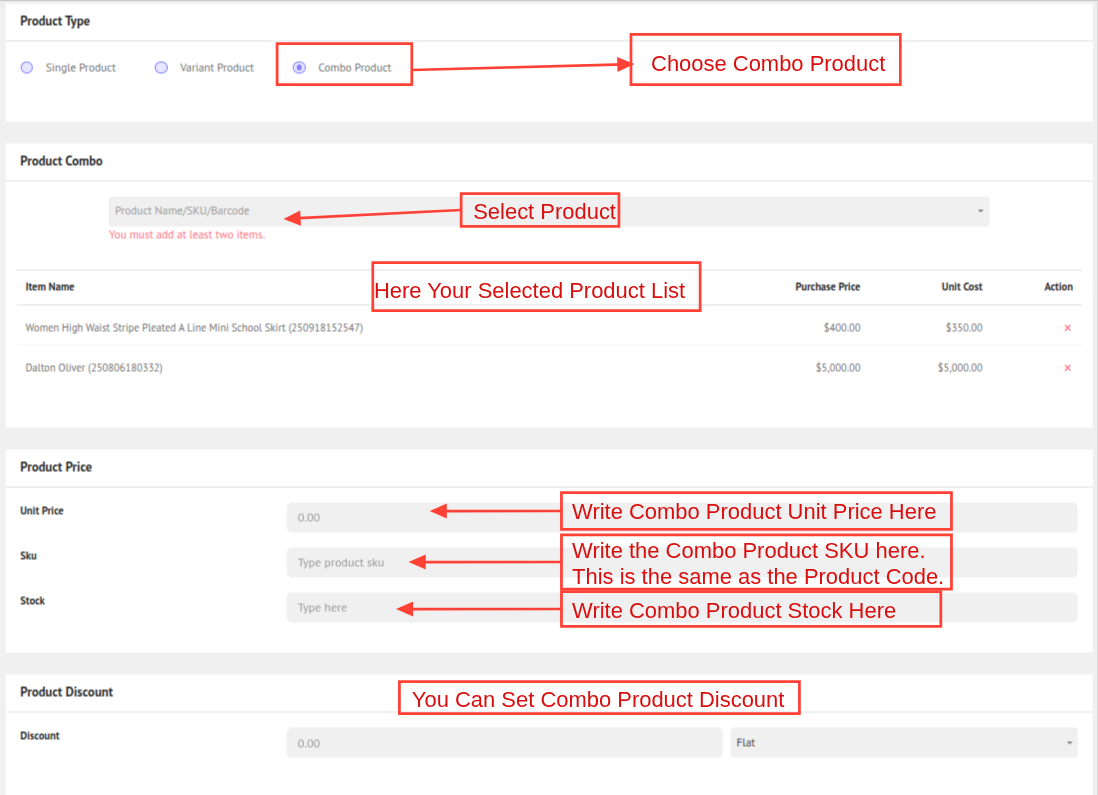
2. This section defines the Product Type, allowing users to specify whether the product is a Single item, a Variant, or a Combo.
Single Product:
Variant Product:
Combo Product:
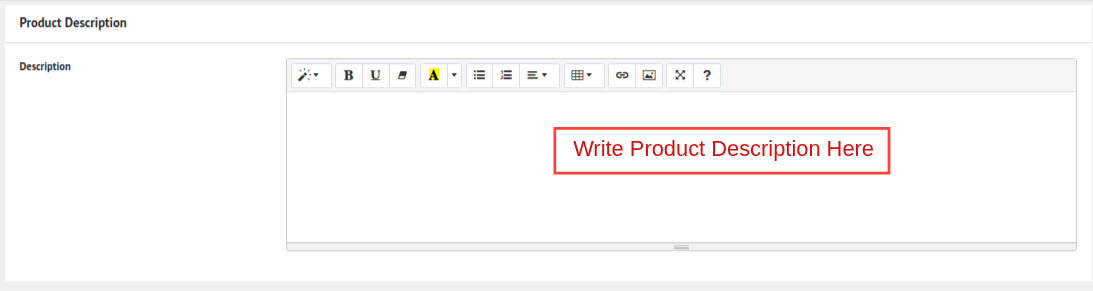
3. This section is for the Product Description, where you can provide a brief summary or details about the product.
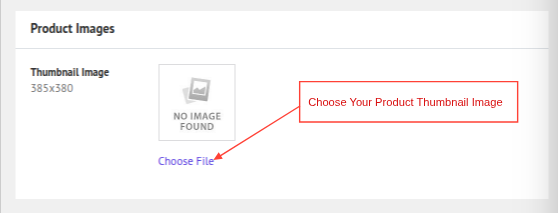
4. This section is for uploading the Product Thumbnail Image to visually identify the product.
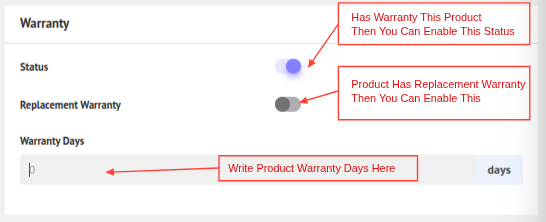
5. Warranty. Here you can set product warranty. Warranty Time and Replacement or Not.
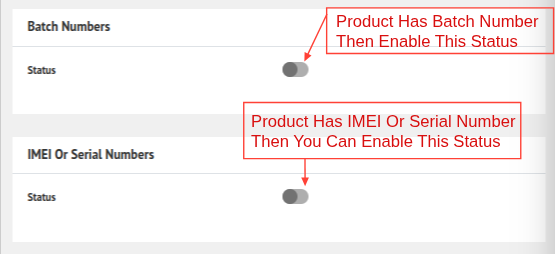
6. This section allows you to enable or disable the Batch or Serial Number feature for the product.
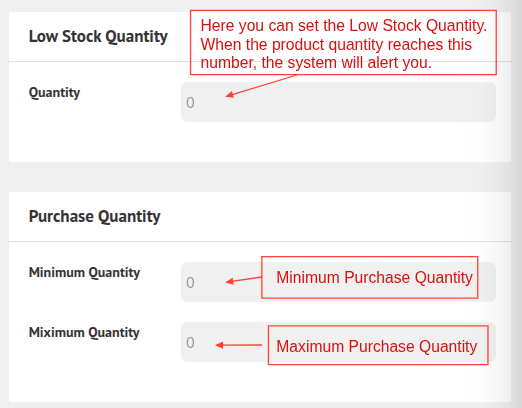
7. This section allows you to set the Low Stock Alert and define the Minimum and Maximum Purchase Quantities for the product.