To see the Employee, go to HRM -> Employee from the menu bar. You will be able to view all employee on the Employee page.
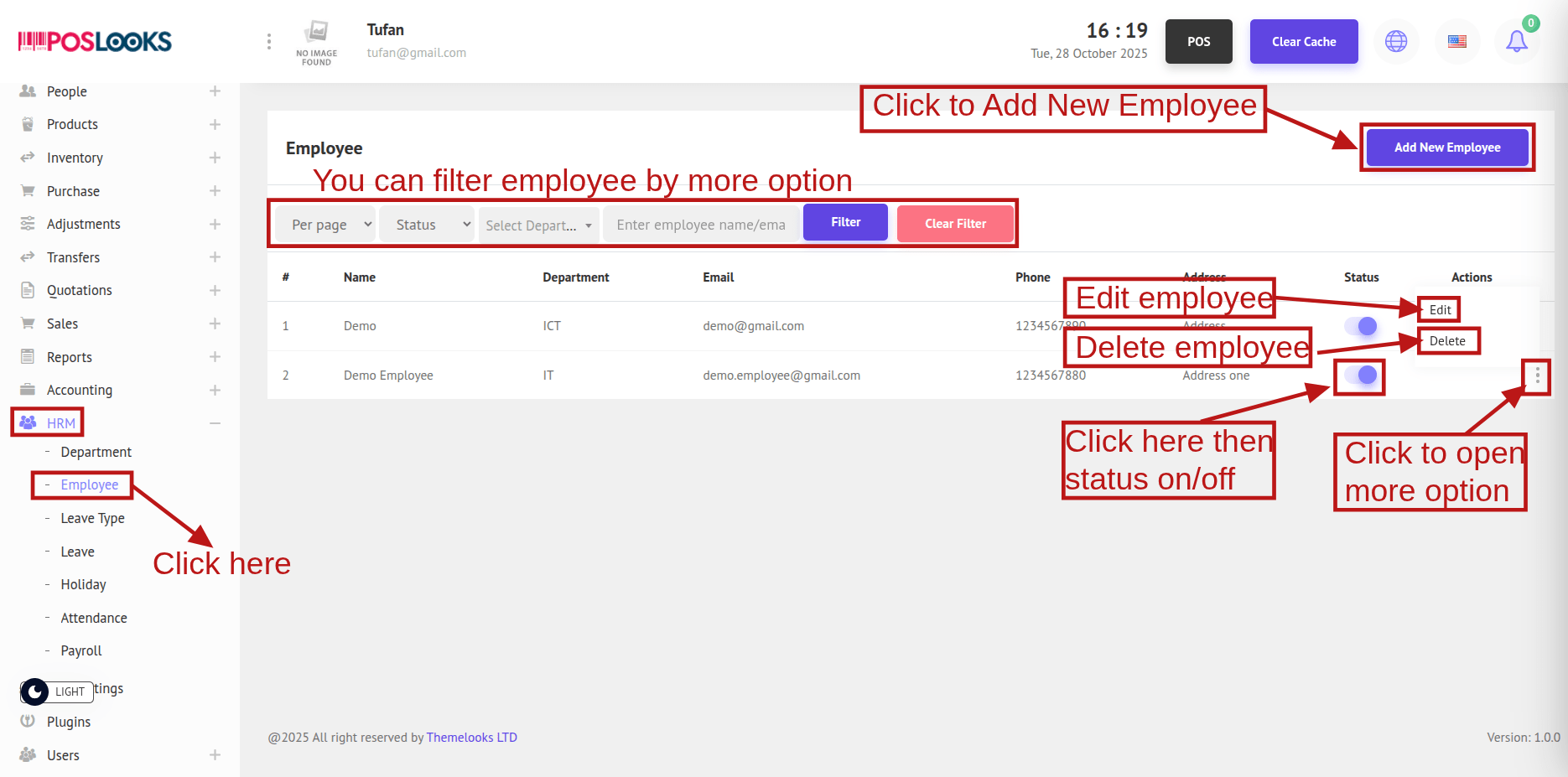
Click the Status to toggle it On/Off.
Before adding an employee, make sure a Department exists. If no department is available, first create one in HRM > Department, then add the employee.
To create a new employee, click Add New Employee. A popup window will open—complete the required fields and click Save.
In the modal, there’s an Add User checkbox. Check this to create a login user for the employee; leave it unchecked if a user account isn’t needed.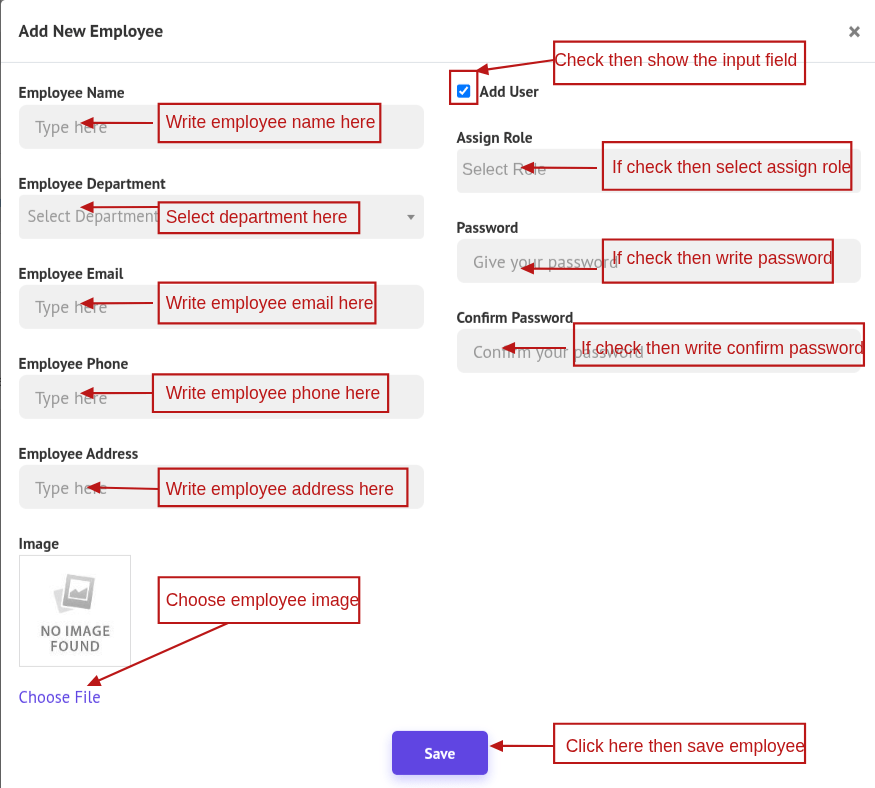
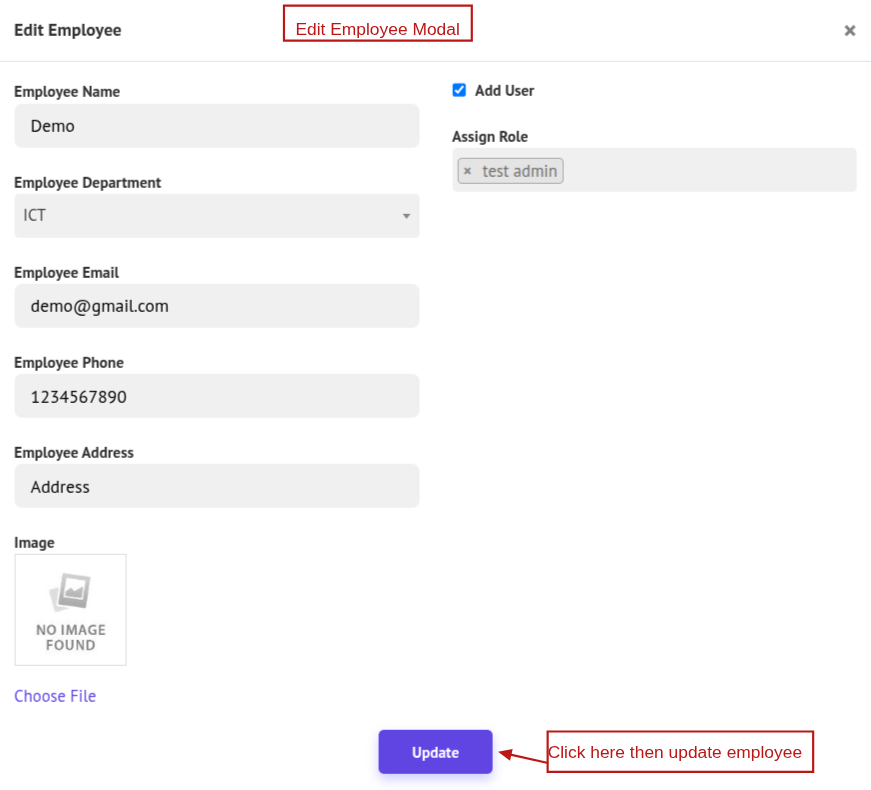
To update a employee, click Edit, make the necessary changes in the popup, and click Update to save.
You can also delete the employee by clicking Delete to remove it.